
 By
·
2 minute read
By
·
2 minute read
If you're managing Google Analytics, Google Ads, Google Tag Manager, YouTube or any other Google product for your company — and you're not on Google Workspace — you need a Google account tied to your professional email address.
Do not use a personal Gmail. Do not create a new Gmail for each tool or project. Both paths create access control problems, complicate audits, and make offboarding a nightmare.
The right approach: create a Google account linked to your existing work email. Here's how.
Before You Start
What this does: Creates a Google account authenticated by your existing email address (e.g., yourname@yourcompany.com). No new Gmail address is created. All account notifications route to your existing inbox.
What this does not do: Give you Google Workspace. This is a free personal Google account — sufficient for accessing Google Ads, GA4, GTM, Search Console, and most marketing tools.
Step-by-Step Guide to Creating Your Google Account with an Existing Email
1. Go to google.com (or any Google product login page).

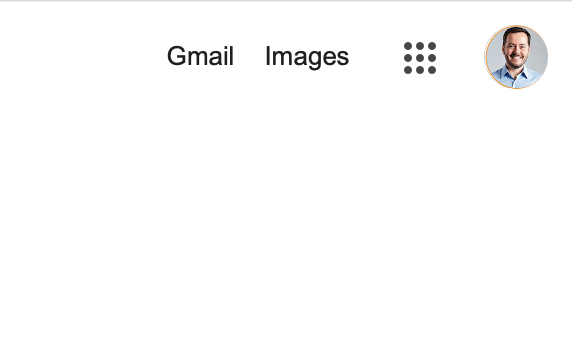
2. Open the Account menu — click your profile picture or initials in the top-right corner.
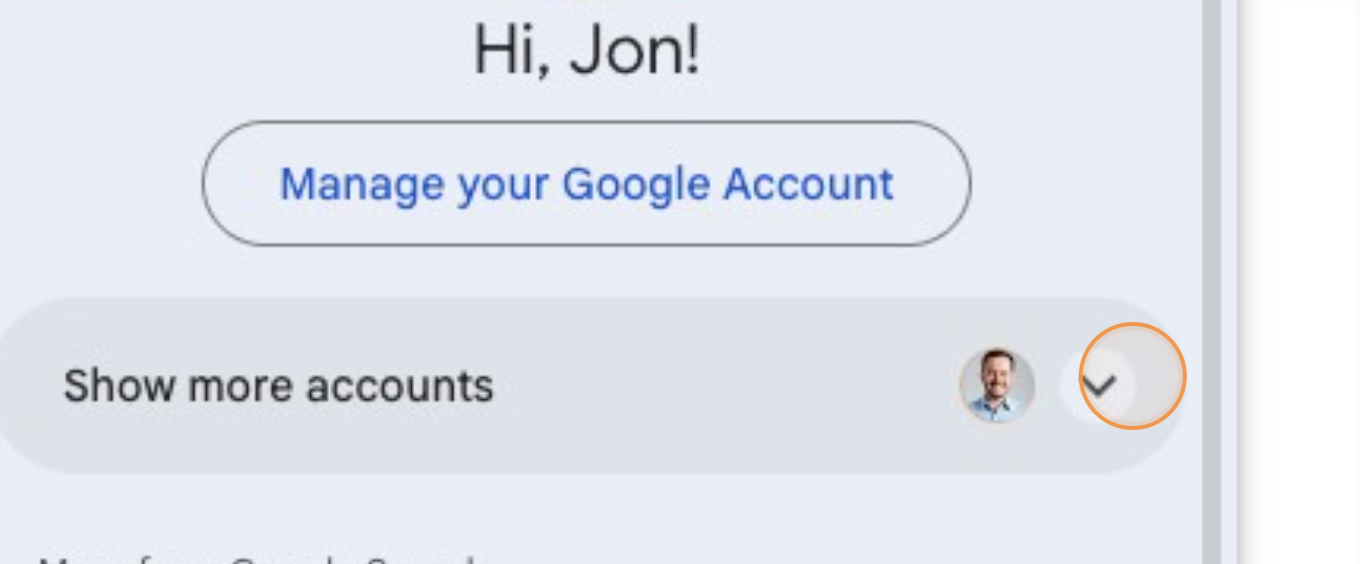
3. If already signed into another Google account, click "Show more accounts" to expand the account switcher.
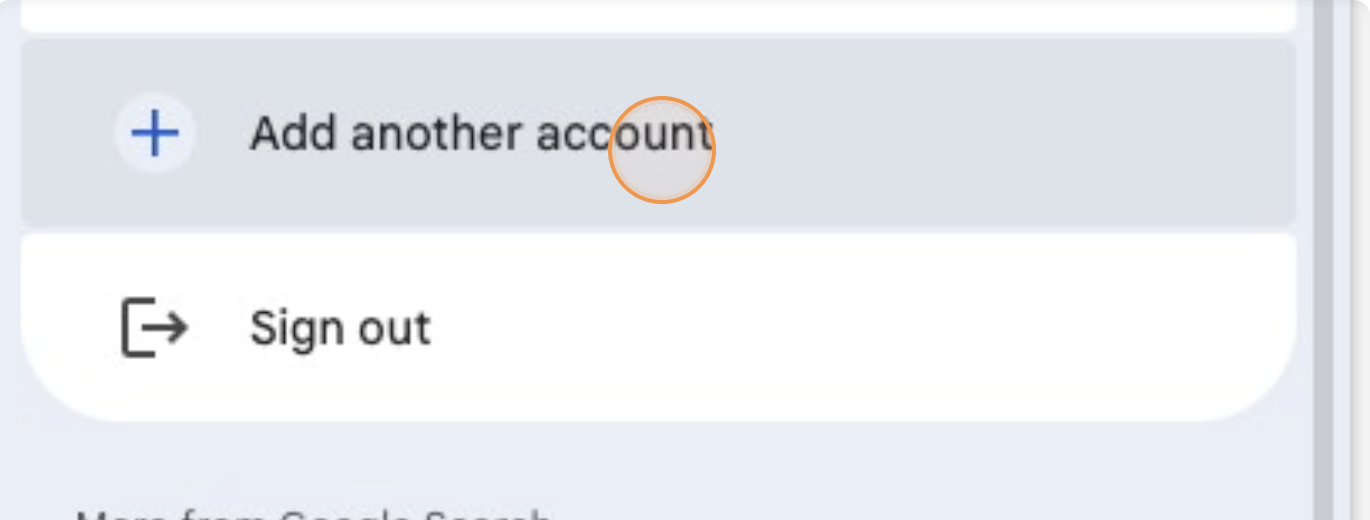
4. Click "Add another account."
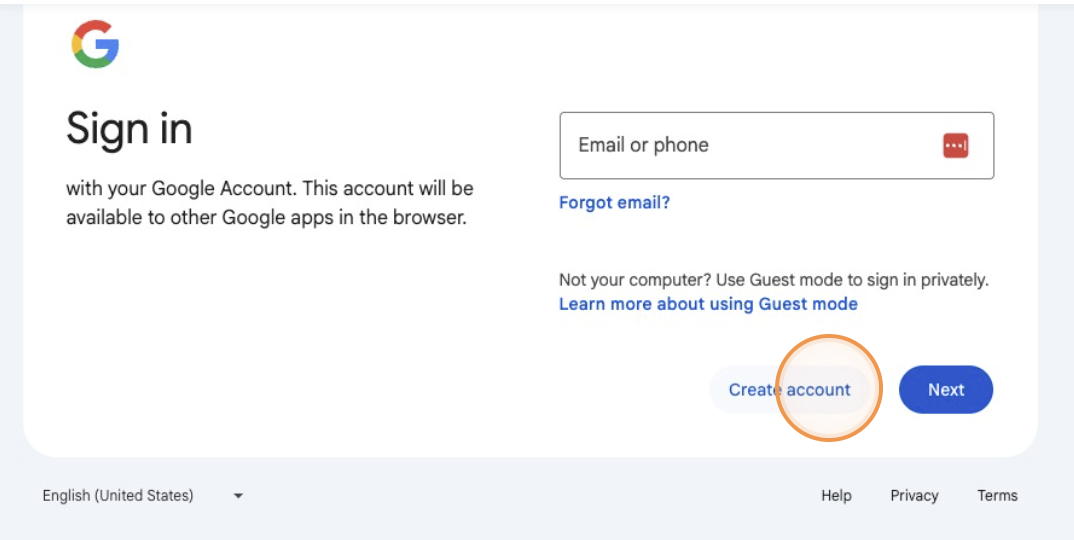
5. On the Sign In screen, click "Create account" (bottom-left of the login form).
6. Select "For my personal use."
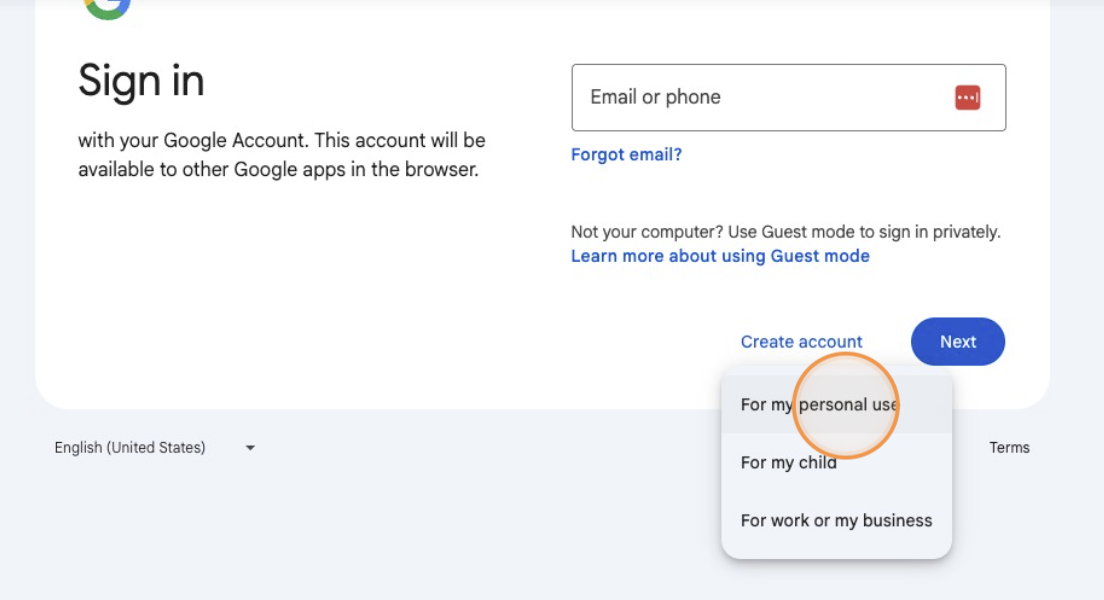
Choosing "For work or my business" initiates a Google Workspace subscription flow — not what you want here.
7. Enter your name. Last name is optional.
8. On the "Create an email address" screen — CRITICAL STEP — click "Use your existing email" (bottom of the form, below the Gmail options).
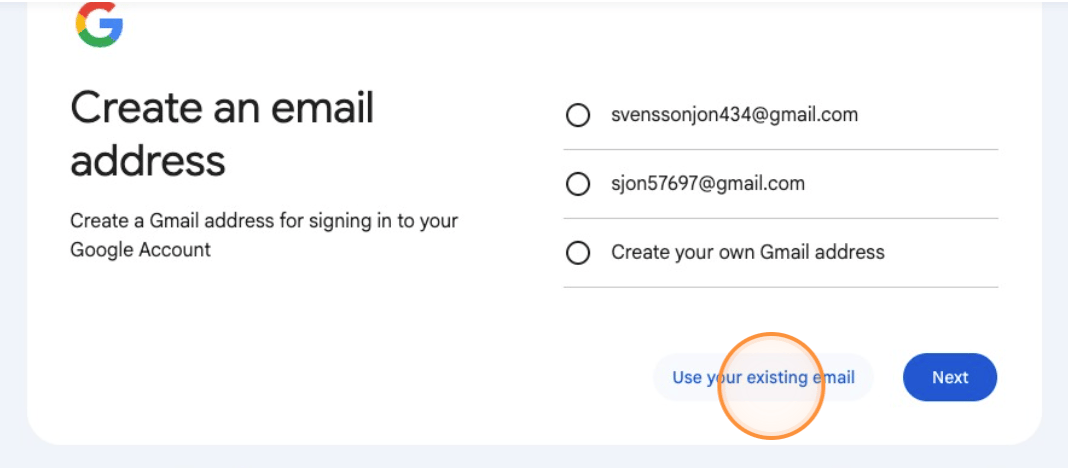
This is the step most people miss. Google defaults to creating a new Gmail address. You must explicitly select the existing email option to bypass that flow entirely.
9. Enter your work email address (e.g., yourname@yourcompany.com).
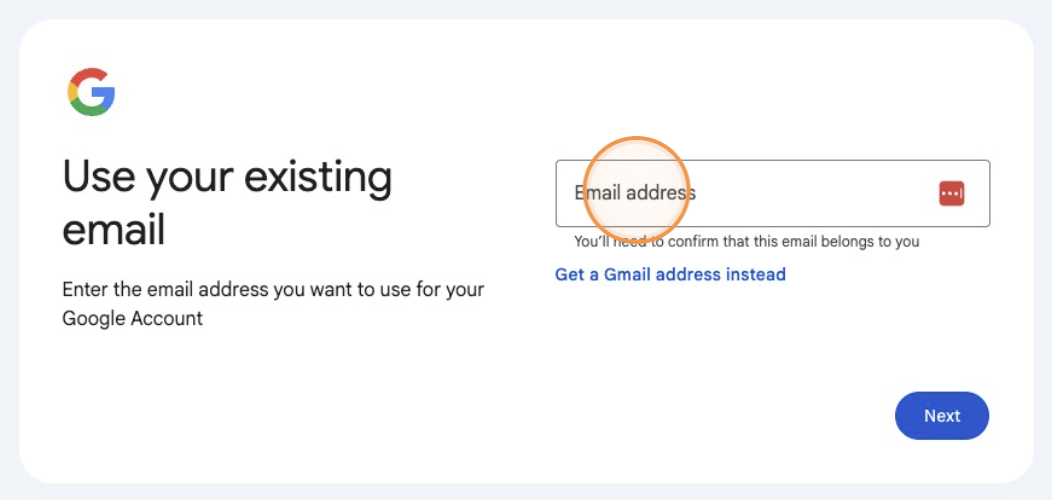
10. Check your inbox and enter the verification code Google sends. Check your spam folder if it doesn't arrive within a minute.
11. Create a password. Use a strong, unique password. Complete any additional verification steps Google presents.
12. Review your account info — confirm the name and email address shown are correct, then click "Next."
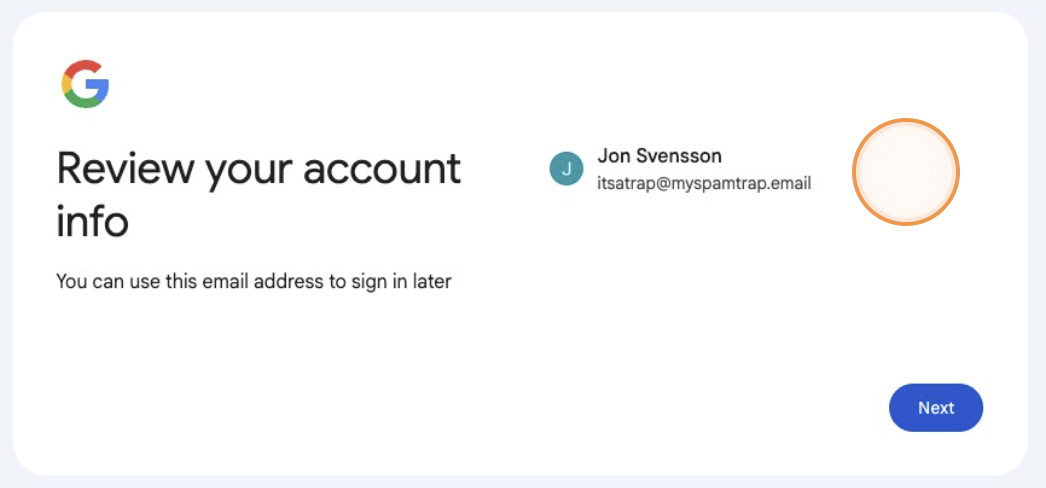
13. Agree to Google's Terms of Service to complete setup.
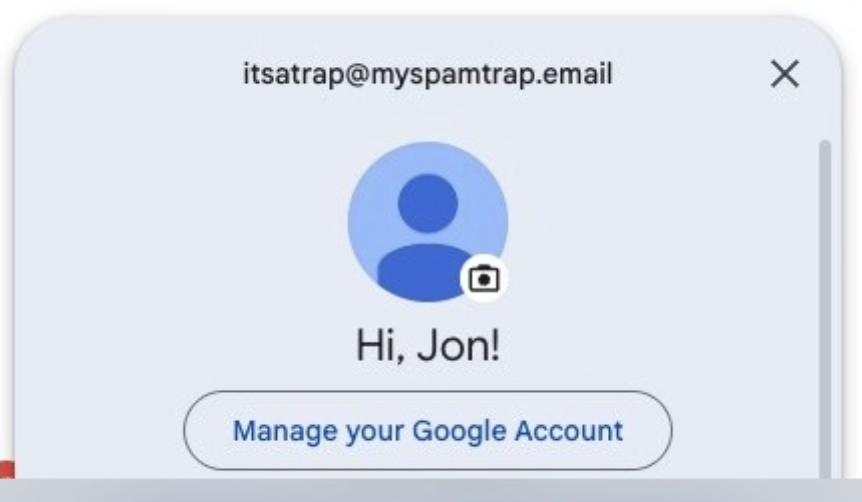
14. Done. Your new Google account is active. You'll see a new profile icon in the top-right of any Google product, associated with your work email — not a Gmail address.
After Setup: What to Do Next
Use this account as the primary owner for any Google properties your team manages — GA4 properties, ad accounts, GTM containers, Search Console, etc.
Add teammates and vendors with scoped permissions rather than sharing credentials.
Never set a personal Gmail as the admin on a company property. Reassigning access later is operationally painful and often gets skipped.